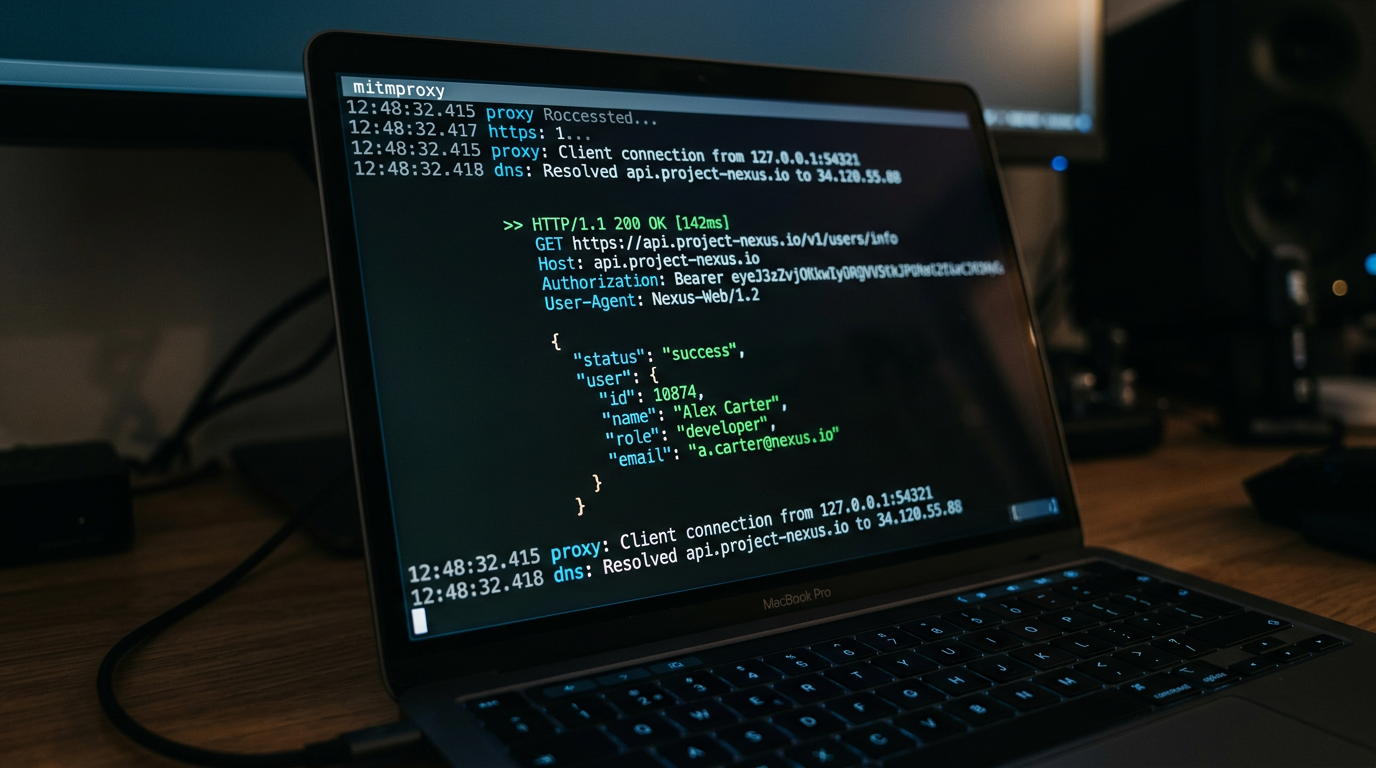
How to Capture HTTPS Traffic from Cursor, Claude Code, and AI Coding Agents
AI coding agents make real API calls behind the scenes. Here is how to route Cursor, Claude Code, and other AI tools through APXY so you can see exactly what they are sending and receiving.
AI coding agents send real HTTP requests to real APIs every time they call a tool, fetch context, or talk to a language model provider. Most developers never see those requests. When something goes wrong — a tool call fails, a response is truncated, an agent loops on the same error — you are debugging blind.
This tutorial shows how to route Cursor, Claude Code, and other AI coding tools through APXY so you can inspect exactly what they send and receive.
Why this is harder than it sounds
On macOS, applications respect the system proxy setting. AI coding tools running inside a terminal often do not — they spawn child processes, use language-specific HTTP clients, or run in environments where the system proxy is invisible.
APXY solves this with apxy env, which generates the exact environment variables needed to force any HTTP client (Node.js, Python, Go, curl) to route through the proxy, including the CA certificate trust setup that makes HTTPS interception work without SSL errors.
Step 1: Install APXY
curl -fsSL https://apxy.dev/install.sh | bashVerify:
apxy --versionStep 2: Start the proxy
apxy startOn the first run, APXY generates a root CA certificate and trusts it in your system keychain. Enter your macOS password when prompted. This only happens once.
The Web UI opens at http://localhost:8082. Leave it open — this is where you will watch traffic come in.
Step 3: Inject the proxy environment
This is the key step. Open a new terminal and run:
eval $(apxy env)This sets HTTP_PROXY, HTTPS_PROXY, NODE_EXTRA_CA_CERTS, SSL_CERT_FILE, REQUESTS_CA_BUNDLE, and other language-specific variables so that any process launched from this shell routes through APXY automatically.
To target a specific runtime:
# Node.js only (for tools like Claude Code, Cursor's Node processes)
eval $(apxy env --lang node)

# Python only
eval $(apxy env --lang python)
Step 4: Launch your AI tool from the proxied shell
From the same terminal where you ran eval $(apxy env), start your AI coding tool:
Cursor (CLI or workspace open):
cursor .Claude Code:
claudeAny Node.js-based tool:
npx your-ai-toolBecause the environment variables are inherited by child processes, everything the AI tool spawns — its language model calls, tool fetches, context lookups — flows through APXY.
Step 5: Watch traffic in real time
Switch to the APXY Web UI at http://localhost:8082. Go to Capture → Traffic.
Use your AI tool normally — ask it to edit a file, run a command, fetch documentation. You will see each API call appear in real time:
- The exact URL and method
- All request headers, including authentication tokens (masked by default)
- The full request and response body
- Timing, status code, and whether the request was intercepted via SSL
What you can do with captured traffic
Find failing tool calls. When an agent gets stuck, look at the last few requests in the traffic log. A 429 rate limit, a 401 authentication failure, or a malformed request body is often the root cause.
See the full request body sent to the LLM. Capture the request to api.openai.com or api.anthropic.com and inspect what context your agent is sending — and how close it is to the context window limit.
Export a failing request as cURL. Right-click any captured request in the Web UI and export it as a cURL command. Paste it into your terminal to reproduce the failure outside the agent, then fix the issue and confirm the response changes.
# Or via CLI
apxy logs list --limit 5
apxy logs export-curl --id <id>
Mock a broken dependency. If your agent is calling an external API that is rate-limiting or returning errors, add a mock rule to unblock development:
apxy mock add \
  --name "mock-openai-response" \
  --url "https://api.openai.com/v1/chat/completions" \
  --match exact \
  --status 200 \
  --body '{"choices":[{"message":{"role":"assistant","content":"Mocked response"}}]}'
Tips for specific tools
Cursor: The editor itself runs on Electron (Chromium), which does respect the system proxy. The AI backend processes are Node.js-based. Running eval $(apxy env --lang node) before launching Cursor from the terminal captures the AI-specific traffic.
Claude Code: Fully terminal-based. Run eval $(apxy env) first, then launch claude in the same session.
Custom agents (LangChain, CrewAI, AutoGen): These are Python or Node.js processes. Run eval $(apxy env --lang python) or --lang node before starting the agent script.
Stop capturing
apxy stopThis stops the proxy and restores your original network configuration.
For more on what you can do once you have traffic captured, see Why Your AI Coding Agent Needs Network Visibility and How to Debug a Failing API Call with APXY.
Debug your APIs with APXY
Capture, inspect, mock, and replay HTTP/HTTPS traffic. Free to install.
Install FreeRelated articles
Why Your AI Coding Agent Needs Network Visibility
AI coding agents are excellent at reading code. They cannot see the network. That gap is where most agent-assisted debugging sessions get stuck. Here is how to close it.
GuideToken Optimization: Fitting API Traffic into Your AI Agent's Context Window
Raw HTTP traffic is verbose. A single request-response pair can consume thousands of tokens. APXY's output formats compress traffic by 60–90% while keeping the information your agent actually needs to diagnose issues.